
Mac setup
NuPhy Air75 V3 on Mac: layout, remapping and connection setup
Set up the NuPhy Air75 V3 on a Mac: check ISO legends and modifier caps, restore right Option, and choose USB, Bluetooth or the receiver.
By WannabeShepherd · · Updated
Good Mac hardware, with one odd ISO compromise
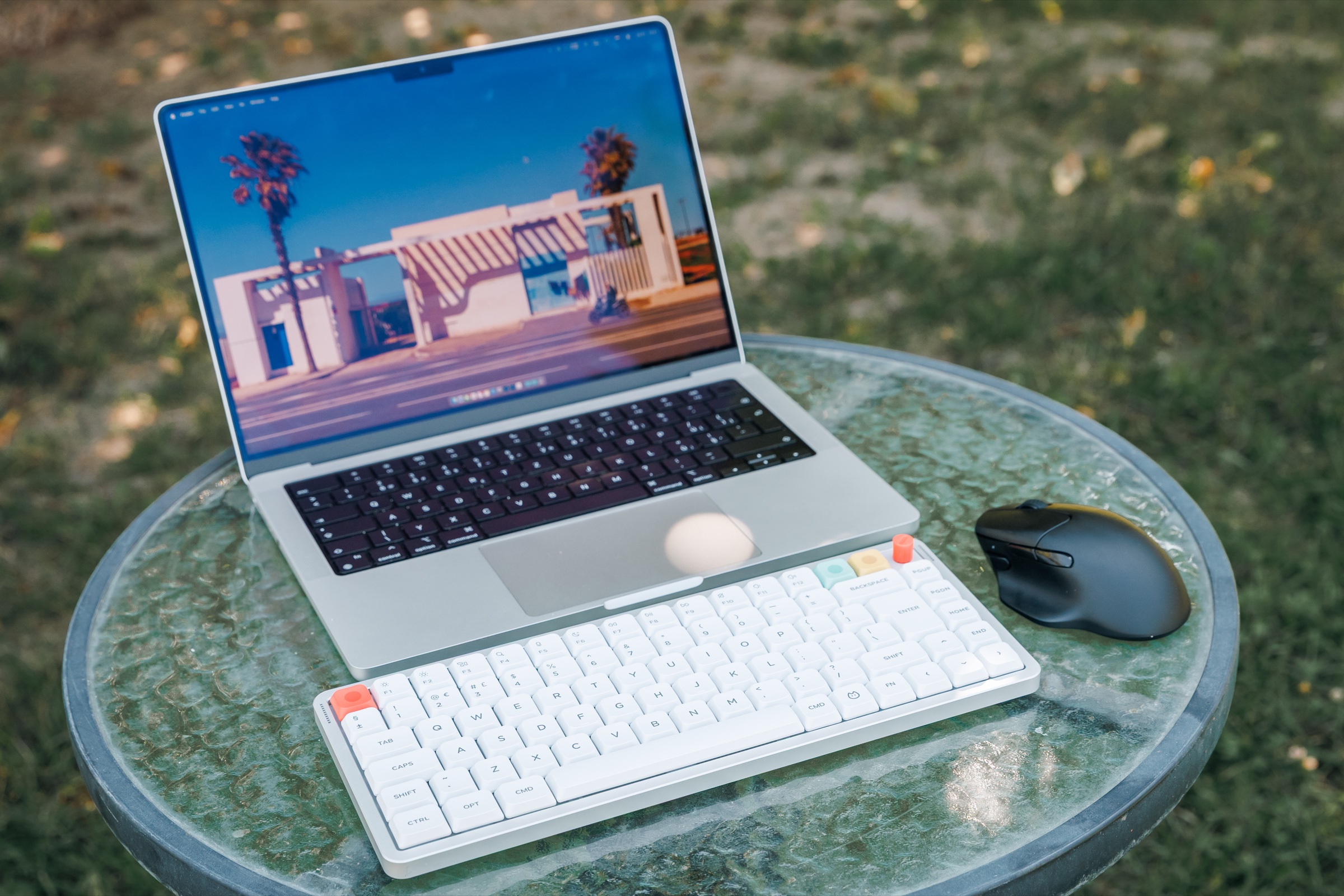
The Air75 V3 worked reliably with my MacBook Pro over Bluetooth, 2.4 GHz and USB, and its physical mode switch made moving between Mac and Windows simple. On my UK ISO unit, the missing matching right Option keycap remained the main annoyance even after remapping restored the function.
This guide is based on my original Nova White UK ISO review unit with Brown switches. It does not represent every regional layout or switch option. The configurator observations describe my test period, when I could access it over USB but not wirelessly. NuPhy supplied the review sample.
As an Amazon Associate I earn from qualifying purchases.
| Feature | How it worked | What to know |
|---|---|---|
| Mac / Windows mode | Physical side switch | The side light strips showed the active mode. |
| Bluetooth | Fn+1, Fn+2 or Fn+3 | Reliable in normal Mac use, with a slight wake delay on some occasions. |
| 2.4 GHz | Fn+4 and the USB-A receiver | Stable in my use; a USB-C-only Mac needs an adapter or hub. |
| Browser configurator | USB connection during my test | Remapping and JSON export/import worked, but I could not open it wirelessly. |
| Right Option | Right Alt remapped to Option | The function returned, but the physical keycap and key size still differed. |
| Profiles | Separate Mac and Windows lighting profiles | Useful when one keyboard moves between both systems. |
The right Option issue on UK ISO
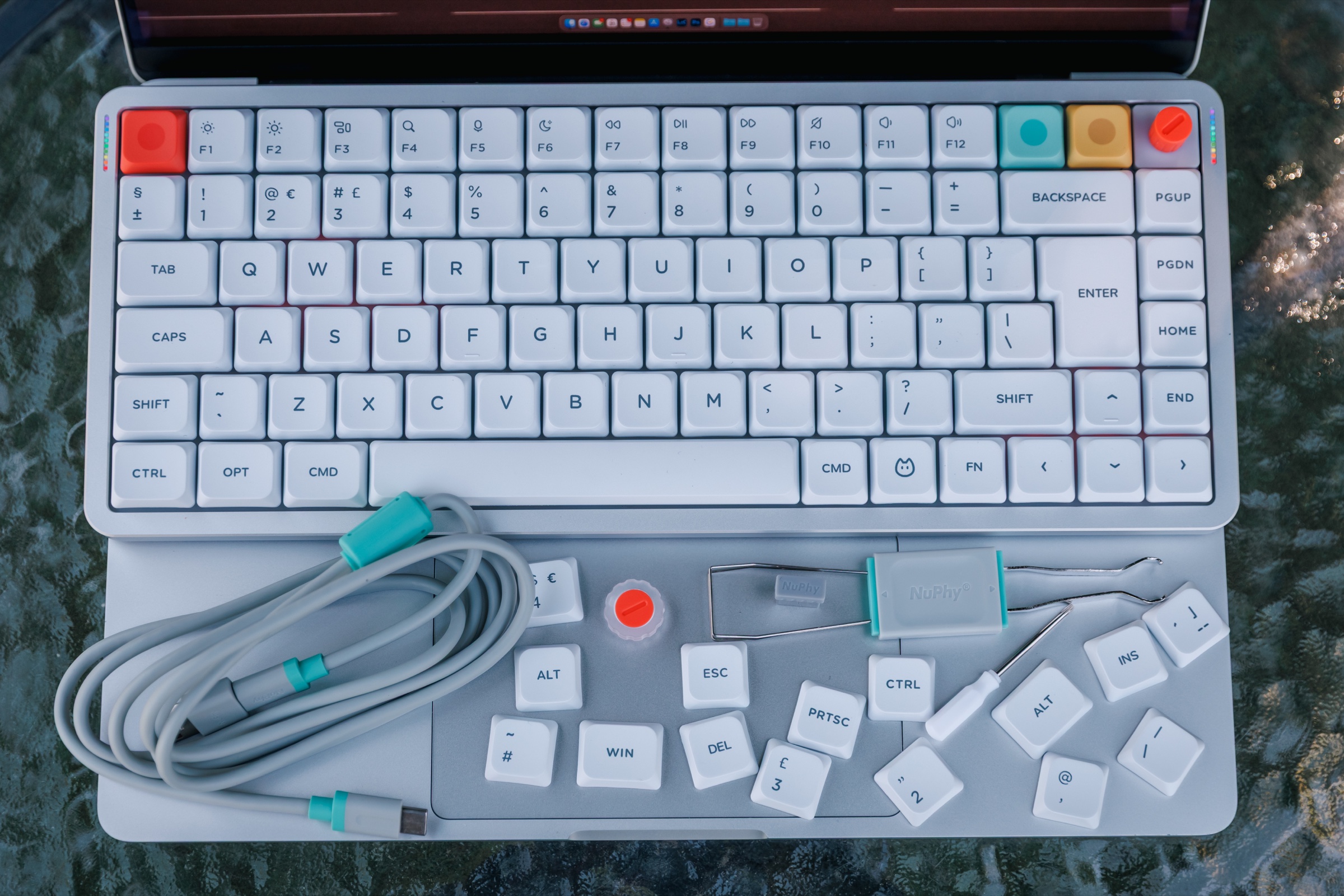
My Nova White UK ISO review unit included a left Option keycap and both Windows Alt keycaps, but no matching right Option keycap. I restored the right Option function by remapping the right Alt position. The remaining compromise was the printed keycap and its size, rather than an inability to use Option on that side.
This is a layout-specific observation from my review unit, not a claim about every Air75 V3 variant. Check the exact regional layout and the product photos for the configuration you plan to buy.
Check the language layout and modifier caps
ISO describes the physical layout; it does not guarantee that the printed letters, punctuation or spare modifier caps match your language and operating system. Inspect the exact regional variant, including the symbols printed above the number row.
For a Mac, check both left and right Option and Command positions, plus the sizes of any replacement caps. My package included Windows Alt caps, but that observation does not establish what every regional kit contains. Remapping changes the key function; it does not change its printed legend or physical size.
How I restored the missing function
I remapped the right Alt position to Option in NuPhy's browser configurator. The change restored the function I needed, and the configuration could be saved, exported and imported as JSON.
Software cannot change the physical keycap or its size, so the fix is functional rather than visual. The save and load controls were also less obvious than I expected.
Connect by cable before opening the configurator
During my test, the configurator was available when the keyboard was connected by USB. I could not access it over Bluetooth or the 2.4 GHz connection.
That did not affect normal wireless typing after configuration, but it is worth having a compatible cable nearby before changing the layout. This describes the software behavior I observed and may change with later firmware or configurator updates.
NuPhy’s current support instructions call for a direct USB data connection and Chrome or Edge for NuPhy IO. Start in the correct Mac mode, change the required key, save, and test it in the application where you use that shortcut. Back up the configuration before further changes.
Switching between Mac and Windows
A physical control switches the keyboard between Mac and Windows modes, and the side light strips indicate the active mode. That was more useful than relying on memory when moving the board between systems.
The keyboard also kept separate lighting profiles for Mac and Windows. The side lights themselves were useful status indicators, although I would have liked more independent control over them.
Bluetooth or 2.4 GHz for a Mac?
Bluetooth was reliable for writing, browsing, photo editing and general work. I occasionally noticed a small wake delay, but not a persistent connection problem. Three Bluetooth slots are available through Fn+1, Fn+2 and Fn+3.
The 2.4 GHz connection on Fn+4 was stable in my testing and is the option I used for gaming. The included receiver is USB-A, so a USB-C-only MacBook needs an adapter or hub. I did not conduct an instrumented latency comparison.
Physical fit with a 14-inch MacBook Pro
The 75% layout is compact on a desk and leaves more mouse space than a full-size keyboard. It is still slightly wider than my 14-inch MacBook Pro, so it is not an exact laptop-width match.
My package included two knob heights. The low knob was difficult for me to grip, so I used the taller orange knob; turning it for volume and pressing it to mute became useful daily controls. The ISO legends on my unit were not shine-through, so RGB lighting illuminated the spaces around the caps rather than the printed characters.
What I would check before buying
Confirm the regional layout, switch type and keycap set rather than assuming every listing matches my Nova White UK ISO Brown-switch unit. If you need right Option, inspect that part of the layout closely.
For a Mac-only desk, Bluetooth is the simplest connection. For gaming or frequent Windows switching, the receiver and physical mode control add flexibility. The linked Amazon listing may show another layout or color, so verify the selected variant before paying.
Sources and further reading
This guide uses the following manufacturer references and primary sources.
As an Amazon Associate I earn from qualifying purchases.
The original review

NuPhy Air75 V3
Compact Air75 V3 tested in UK ISO with Brown switches on Mac and Windows, including 2.4 GHz gaming.
Read review