
Mac monitor connections
Which cable do you need for a 5K or 6K Mac monitor?
Choose a cable for ASUS PA27JCV, BenQ PD2730S or ASUS PA32QCV: USB-C video, Thunderbolt, Mac mini ports and what is already in the box.
By WannabeShepherd ·
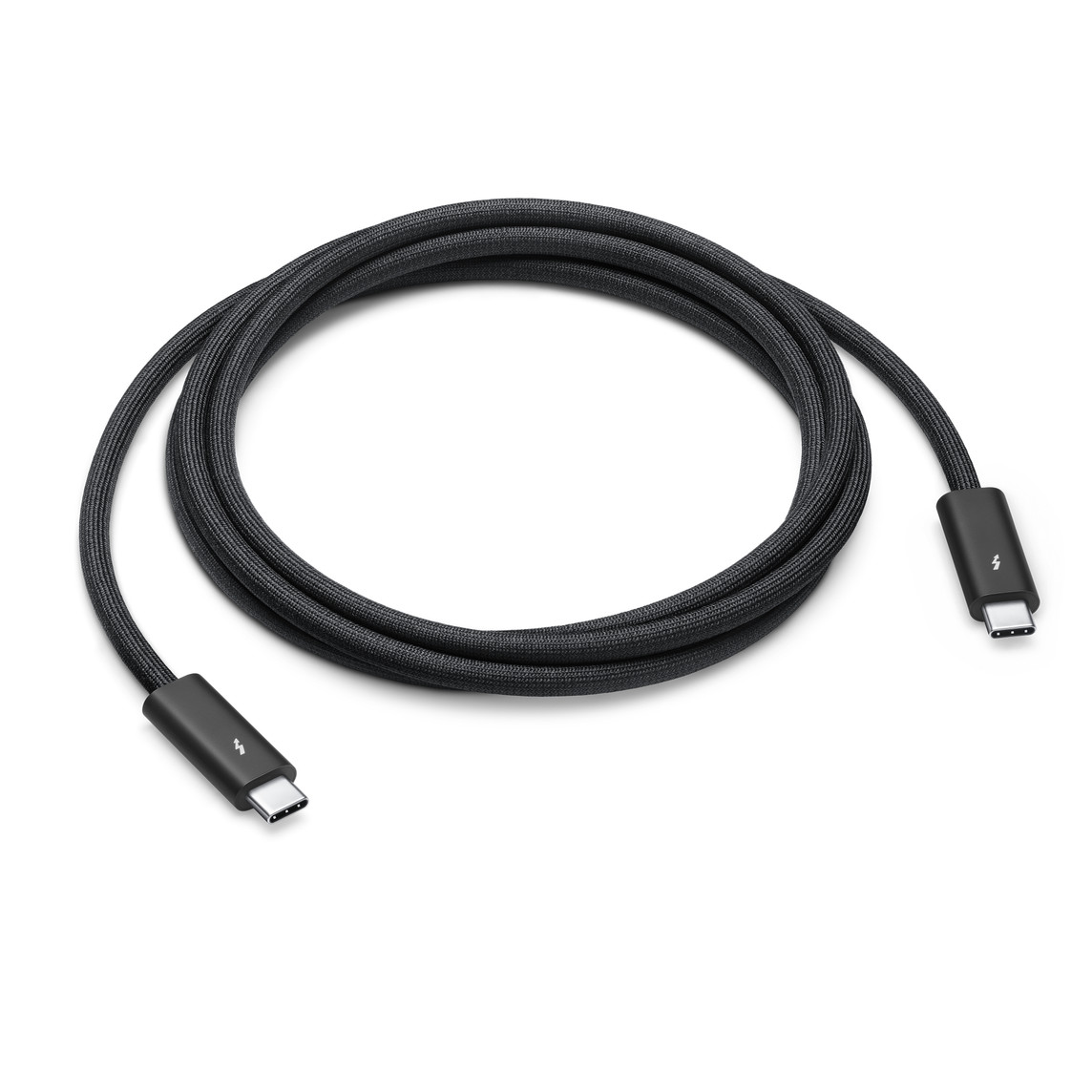
Try the supplied cable first
For a direct connection to the BenQ PD2730S or ASUS PA32QCV, start with the supplied Thunderbolt cable. The ASUS PA27JCV instead has a USB-C DisplayPort Alt Mode input. If you need a replacement that covers both connection types, choose a Thunderbolt 4 cable with explicit DisplayPort Alt Mode support, then check the exact Mac’s display limits. A charging wattage printed on a USB-C cable does not establish that it carries video.
This is a specification-based connection guide, checked on 13 October 2026. I have not tested these cables or monitor combinations. The table identifies the connection to check, rather than promising every display mode on every Mac. Amazon links are paid affiliate links.
As an Amazon Associate I earn from qualifying purchases.
| Monitor | Native panel / maximum refresh | Mac-to-monitor connection to start with | Listed bundled cable |
|---|---|---|---|
| ASUS PA27JCV | 5120 × 2880 / 60Hz | Video-capable USB-C to its DP Alt Mode input; check the Mac and supported timing | USB-C; regional bundle varies |
| BenQ PD2730S | 5120 × 2880 / 60Hz | Thunderbolt to the upstream input | 1 m Thunderbolt 4; regional bundle varies |
| ASUS PA32QCV | 6016 × 3384 / 60Hz | Thunderbolt to the upstream input | Thunderbolt 4; regional bundle varies |
USB-C describes the plug, not the whole connection
A USB-C plug can carry charging, USB data, DisplayPort video or Thunderbolt. The cable and both ports must support the route you want. A charge-only cable can fit perfectly and still give you no picture.
The PA27JCV is a useful example: its USB-C video input uses DisplayPort Alt Mode, whereas the PD2730S and PA32QCV offer Thunderbolt upstream connections. A suitable Thunderbolt 4 replacement cable can also carry DisplayPort Alt Mode, but using it does not turn the PA27JCV into a Thunderbolt monitor.
For the PA27JCV, the USB-C video path is also the route to check for a laptop charging and hub setup. ASUS lists up to 96 W delivery. BenQ lists up to 90 W from the PD2730S upstream port; ASUS lists up to 96 W for PA32QCV. These are monitor ceilings, not guaranteed charging rates for every laptop.
On the PD2730S, do not confuse the separate USB-C data-only upstream socket with the Thunderbolt upstream socket. BenQ’s connection table distinguishes the ports and the supported cable routes. Its manual also makes the connected computer’s capability part of the compatibility check.
On a 2024 Mac mini, use a rear Thunderbolt port
The two front USB-C ports on the 2024 M4 and M4 Pro Mac mini are USB 3 data ports. For a USB-C display connection, use a rear Thunderbolt port with DisplayPort output. Buying a more expensive cable will not add display output to a data-only port.
Apple lists the M4 model with Thunderbolt 4 and DisplayPort 1.4 output, and M4 Pro with Thunderbolt 5 and DisplayPort 2.1 output. Display-count limits also differ: Apple specifies up to three displays for each model, with different permitted resolutions and combinations. Check its exact configuration table before building a multi-monitor desk.
A 6K/60Hz panel does not by itself mean you must buy a Thunderbolt 5 cable. The PA32QCV has Thunderbolt 4 inputs. The Mac’s output, monitor input and supported timing still decide the result. A Mac mini also needs its own mains power; the monitor’s USB-C charging output does not replace that.
Two replacement cables to compare
Cable Matters 107032, black, 1 m: the manufacturer lists Intel-certified Thunderbolt 4, 40Gbps, DisplayPort Alt Mode and up to 240 W USB Power Delivery. The Amazon listing checked here is ASIN B08YS59V4K, with 3.3 Feet selected. Choose it when a 1 m run reaches comfortably. Its 240 W rating does not make a 90 W monitor charge at 240 W.
Apple Thunderbolt 4 Pro, 1.8 m: Apple lists Thunderbolt 3/4 and USB4 up to 40Gbps, DisplayPort HBR3 and charging up to 100 W. The Amazon listing checked here is ASIN B0D1X6LM9K. Choose it when you need the longer run and specifically want Apple’s cable; compare the current delivered price before paying for the extra length.
These are two exact replacements, not a benchmark ranking. The shared 40Gbps rating does not prove identical behaviour in every setup. The 1 m Cable Matters selection is also different from its separately listed 2 m active cable. Do not apply one variant’s specifications to another length without checking.
What the complete setup needs
For a single direct display: a Mac that supports the required display mode, its video-capable output, the matching cable, the monitor’s upstream video input and the monitor’s mains supply. A Mac mini needs its own power cord too. A MacBook may charge through the monitor when the supported power is sufficient for your workload.
If your supplied cable reaches and works at the desired mode, your extra cable budget is zero. If replacing it, measure the actual desk route with slack, check the length and colour selected on Amazon, and compare seller, returns, shipping and tax. This guide deliberately does not freeze an unverified live price.
HDMI or DisplayPort can be a separate option on these monitors, but do not treat that as the same one-cable hub-and-charging setup. Check the monitor’s supported timings and any separate USB upstream requirement. A generic “8K” label on an adapter is insufficient evidence for your exact 5K or 6K Mac configuration.
If the picture is missing or the resolution is wrong
Check the monitor’s selected input and that you used its upstream port. Connect directly to the Mac with the supplied cable, leaving docks and extensions out while isolating the problem. Confirm the cable actually supports video, then compare macOS display settings with the monitor manual and your exact Mac’s supported configurations.
If the direct connection works but a dock does not, investigate the dock’s video route and limits before replacing the monitor cable. More cable bandwidth cannot increase a host’s permitted display count. For the wider shopping decision, use the 5K and 6K monitor catalogue; for desk expansion, see the Mac mini docks and storage guide.
Sources and further reading
This guide uses the following manufacturer references and primary sources.
- Apple Mac mini 2024 technical specifications
- Apple Thunderbolt 4 Pro cable, 1.8m
- Cable Matters 107032 official specifications
- ASUS PA27JCV specifications and included accessories
- ASUS PA32QCV specifications and included accessories
- BenQ PD2730S specifications and included accessories
- BenQ PD2730S user manual: connection table, page 22
Common questions
Can I use the front USB-C port of a 2024 Mac mini for a monitor?
Use a rear Thunderbolt port for USB-C display output. The front ports are USB 3 data ports.
Do I need Thunderbolt 5 for the ASUS PA32QCV?
The PA32QCV has Thunderbolt 4 inputs. Its 6K/60Hz panel alone is not a reason to require a Thunderbolt 5 cable; check your exact Mac and display configuration.
Is the ASUS PA27JCV a Thunderbolt monitor?
Its USB-C video input uses DisplayPort Alt Mode. A compatible Thunderbolt cable can carry that signal, but does not change the monitor input into Thunderbolt.
Will a 240 W cable charge a MacBook at 240 W?
No. The monitor or charger, cable and laptop must support the charging profile. The cable rating is a ceiling, not a supplied charging rate.
As an Amazon Associate I earn from qualifying purchases.