
Mac mini gear · 2026 shortlist
Best Mac mini docks and storage upgrades: 5 smart picks for 2026
Before buying a dock, decide whether you need more ports, faster storage, or just a tidier desk. These five options solve different problems for Mac mini M6 and M5 Pro owners.
By WannabeShepherd · · Updated · Manufacturer-specification shortlist
Quick answer: which Mac mini dock should you buy?
For most Mac mini M6 desks, start with no dock and use the built-in ports. Pick the Satechi stand for a tidy setup with modest 10Gbps SSD storage, OWC Express 1M2 for a separate 40Gbps USB4 SSD, or CalDigit TS4 when you need its larger port selection. Consider Thunderbolt 5 only for an M5 Pro and peripherals that can use the extra bandwidth. These picks are based on published specifications, not a hands-on comparison.
- Best first move: use the Mac mini's built-in ports until you hit a real limit.
- Neatest compact setup: Satechi Mac mini Stand & Hub with NVMe enclosure (10Gbps storage).
- Most ports: CalDigit TS4 (18 ports and 40Gbps Thunderbolt 4).
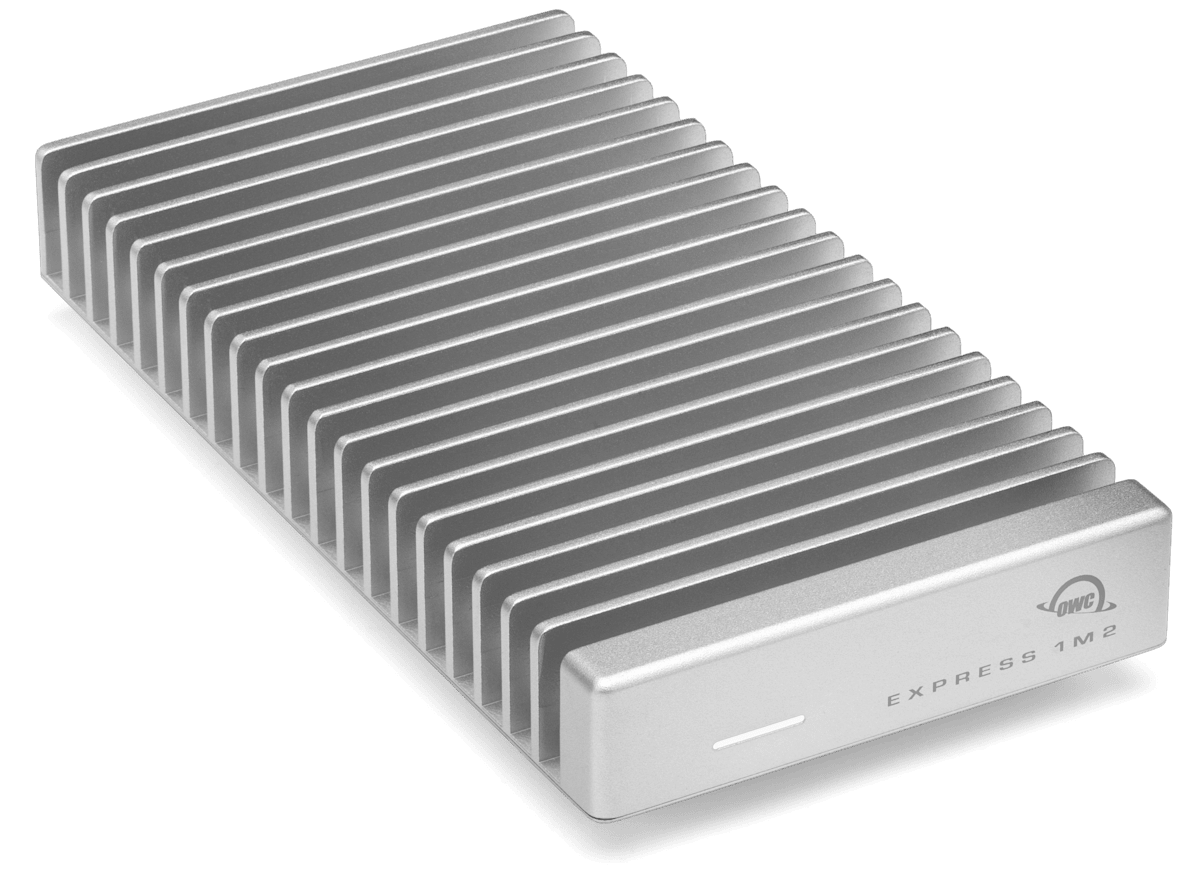
- Fast external SSD: OWC Express 1M2 (USB4, up to 40Gbps link).
- For M5 Pro expansion: compare a Thunderbolt 5 dock such as CalDigit TS5 Plus.
Sources: Apple Mac mini specifications, Satechi compatibility list, Satechi manual, OWC Express 1M2 specifications and CalDigit TS4 specifications.
This is a research-based buying shortlist, not a hands-on comparison of these docks. I use a Mac mini M4 for writing and photo work; the 2026 models and accessories below are checked against manufacturer specifications. Prices, regional stock and exact bundled cables change. Confirm compatibility for your specific Mac, display and SSD before ordering.
Some links below are Amazon affiliate links. As an Amazon Associate I earn from qualifying purchases.
Pick the job before the dock
| Your main need | Start here | Include in the budget |
|---|---|---|
| Keyboard, mouse and one existing drive | Built-in ports or a small data hub | Only missing cables/adapters; keep the working drive |
| Front USB-A, SD cards and tidy integrated storage | Satechi ST-GNMMES | Compatible NVMe SSD, capacity and a separate backup |
| Frequent large file transfers or active media storage | OWC Express 1M2 directly on a rear USB4/Thunderbolt port | Enclosure plus NVMe, or a ready-built drive—not both; backup storage |
| Many peripherals and card readers on the desk | CalDigit TS4 | Any separate SSD and display adapters actually needed |
| Several high-bandwidth devices on a TB5 Mac | Compare TS5 Plus with the exact host | Matching peripherals and any adapters; desktop host charging adds no value |
A hub and a fast SSD solve different problems. For a photo library, I would price the storage path first, then add only the ports that are missing. The Lightroom setup guide separates active storage from backups.
Follow the whole storage connection
Mac port → hub or enclosure → SSD → cable. The useful connection is limited by the capabilities each part actually shares. A fast NVMe drive does not turn a 10Gbps enclosure into a USB4 device. Connecting that enclosure to a Thunderbolt port also leaves its own 10Gbps link unchanged.
Apple lists the current M6 mini’s front ports at up to 10Gb/s and rear Thunderbolt 4/USB4 at up to 40Gb/s. The M5 Pro has rear Thunderbolt 5. Use a rear port for the Express 1M2’s USB4 path; the front USB-C connector does not establish the same speed. If you own an older mini, check its exact chip and port specifications rather than applying the current model’s diagram.
Also separate Gb/s link rates from MB/s file transfers. Dividing 10Gb/s by eight gives a theoretical 1,250MB/s before protocol overhead. That is an explanatory ceiling, not an SSD benchmark. Small files, drive cache, temperature and simultaneous transfers can reduce the result.
If an SSD is connected through a hub, other transfers can share its upstream connection. A separate direct storage cable can be a better arrangement than buying a more expensive dock for unused features.
Can your monitor replace a Mac mini dock?
If you already have a monitor with a useful hub, count its ports before buying another box. A keyboard, webcam and occasional drive may fit without a dock. If you are also choosing a display, compare the whole desk bill: monitor plus missing accessories, rather than monitor plus a dock by default.
| Choice | What it adds | What to check |
|---|---|---|
| Your existing monitor hub | Reuse its downstream USB or Thunderbolt ports | Enough connections for your actual peripherals; the upstream cable carrying their data |
| Dell U2725QE | 4K/120Hz, downstream Thunderbolt 4, 10Gb/s USB, 2.5GbE and KVM | Exact Mac and display mode support; a separate card reader if needed |
| BenQ PD2730S | 5K/60Hz, downstream Thunderbolt 4, three 10Gb/s USB-A ports, one 10Gb/s USB-C port and KVM | No Ethernet listed; use the Mac mini’s own port where practical |
| CalDigit TS4 | Two downstream Thunderbolt 4 ports, more USB, SD/microSD and 2.5GbE | Whether these extra connections solve a shortage the monitor leaves |
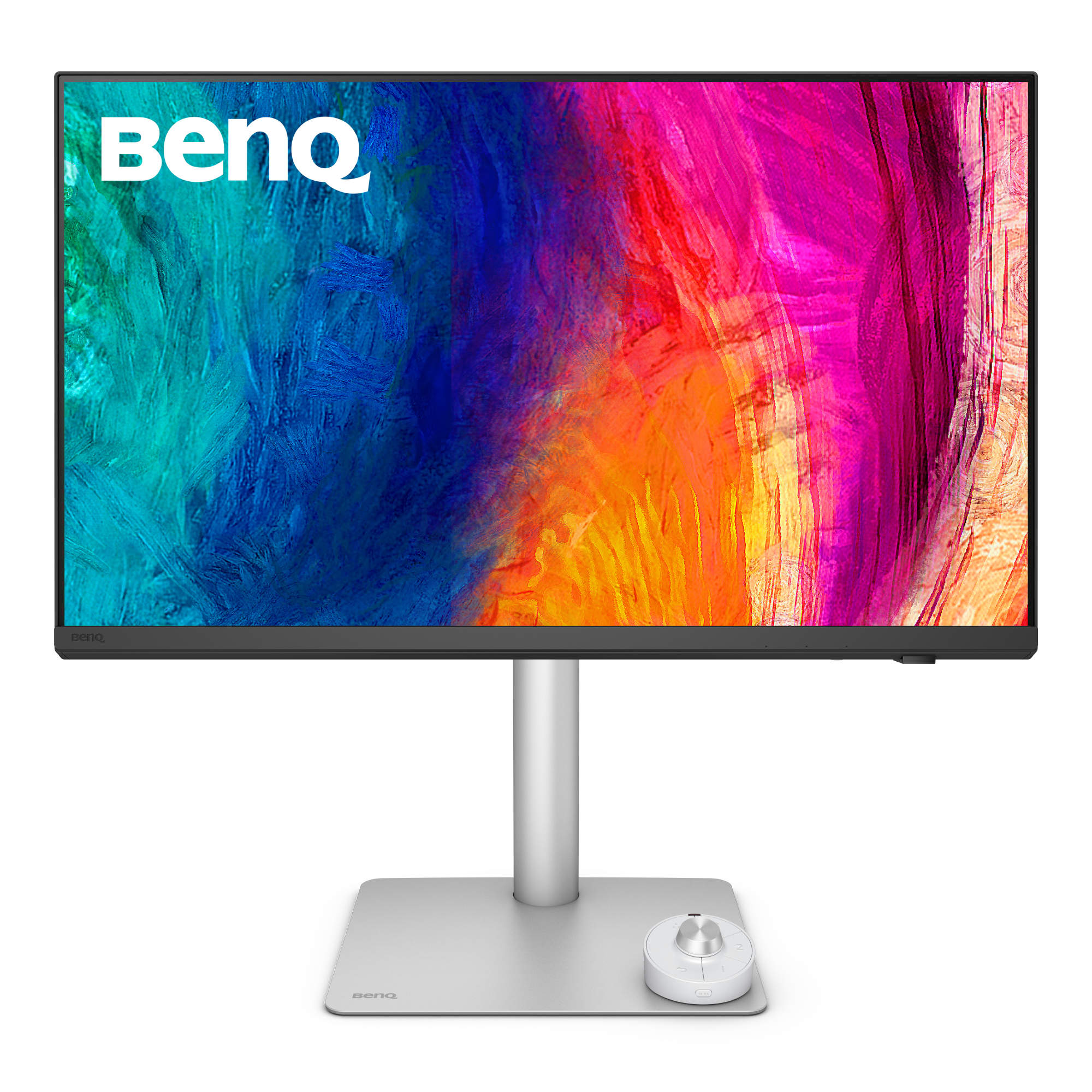
The picture and the peripheral data need the right routes. These Dell and BenQ models have a separate USB upstream connection as well as Thunderbolt. When using HDMI or DisplayPort for video, follow the monitor’s upstream and KVM instructions for the keyboard and webcam. A visible desktop alone does not establish their connection.
An SSD behind the monitor can be convenient, but a Thunderbolt label does not establish full-speed transfers with every connected device active. A direct Mac connection may be simpler for a working drive. Eject storage before unplugging its data chain.
For photography, the TS4’s SD slots do not read CFexpress: budget for the correct CFexpress reader. A Mac mini still needs its own power connection; the monitor’s laptop-charging wattage does not power the computer.
Choose the screen for its panel first. The Studio Display versus BenQ guide separates that decision from extra ports. For another screen, check the Mac mini dual-monitor guide before relying on a daisy chain.
Paid Amazon.com links. Check the exact model, seller, current price and included cables. These hub combinations have not been benchmarked here.
1. Buy nothing until you need more ports
Best for most Mac mini desks. Start by listing every device and its cable. The mini already has built-in USB-C/Thunderbolt, HDMI, Ethernet and front USB-C ports; a keyboard, mouse, webcam or card reader may not need a dock at all. A direct cable can also be the simplest path for an external SSD.
Why it ranks first: it costs nothing, avoids another power supply and keeps storage bandwidth straightforward. Skip this if: you routinely disconnect peripherals, need extra displays or have run out of ports.
Use the Mac mini ports and storage checklist before choosing a hub.
2. Satechi Mac mini Stand & Hub with SSD Enclosure
Best for a compact M4/M6 desk with modest storage needs. Satechi lists the stand as compatible with Mac mini M4, M5 Pro and M6. It adds two 10Gbps USB-A data ports, one USB 2.0 port, UHS-II SD reader and an M.2 NVMe enclosure rated up to 10Gbps. This is a tidy, integrated fit, but the SSD connection is not a 40Gbps Thunderbolt enclosure.
The manual says NVMe only, supports 2230 through 2280 lengths, and excludes SATA drives. Check the exact SSD and thermal fit; its USB ports are for data and peripherals, not charging.
Power caveat: Satechi warns that, with an SSD installed, connecting more than one high-powered peripheral or external storage device can cause devices to unmount. Put a keyboard or mouse on its USB 2.0 port and consider connecting another drive directly to the Mac. Eject the SSD before unplugging the hub.
3. CalDigit TS4
Best for a busy desk that needs many connections. CalDigit specifies 18 ports, three Thunderbolt 4/USB4 ports, five 10Gbps USB-A ports, 2.5GbE, SD and microSD readers, and up to 98W host power delivery. That host charging is mainly useful for a laptop; a Mac mini does not need it. Choose the TS4 when its port count, card readers or wired networking will be used, not just because it is a premium dock.
The 40Gbps Thunderbolt link is useful for compatible fast storage and accessories. Display output still depends on your Mac's supported display combination, cable and monitor.
4. OWC Express 1M2
Best for a fast, separate external SSD. This is an enclosure rather than a port-expansion dock. OWC specifies a USB4 connection up to 40Gbps and support for M.2 2230, 2242 and 2280 NVMe drives. It keeps the storage path separate from a general-purpose hub and can be paired with a simple port hub only if you need more connections.
OWC's advertised real-world speed is from its own test system. Your result depends on the drive, Mac, cable, file sizes and sustained workload. External storage is not a backup by itself.
Enclosure-only means no SSD. The Amazon target below is the empty enclosure. Add a compatible NVMe drive, or compare a ready-built Express 1M2 capacity instead. OWC lists a short 0.3m 40Gb/s cable with the enclosure; check desk reach before ordering a longer replacement. A charging cable is not automatically a 40Gb/s data cable.
5. CalDigit TS5 Plus
Best for a Thunderbolt 5 workstation built around M5 Pro. Consider a TB5 dock when the Mac and the devices on the other end can use that bandwidth. It is unnecessary for many everyday keyboards, mice, card readers and single-drive setups. Confirm that the particular Mac mini configuration exposes the port standard you need and compare the complete dock's port layout before buying.
Compare the complete storage cost
Empty enclosure total = enclosure + compatible NVMe + any missing cable + backup destination. For a ready-built portable SSD, compare the same usable capacity with its included cable. For a dock plus separate storage, add both products. Check delivered cost, plug type and warranty region before treating one listing as cheaper.
Do not buy an expensive high-end NVMe only for its advertised internal peak speed if the enclosure is the limiting link. Capacity, thermal fit and sustained behaviour still matter. If your only need is a second copy for backup, a premium dock is usually an indirect way to solve it.
I have not benchmarked these products or measured a combined dock-and-drive workload. The table is a buying decision aid, not a claim that every option reaches its advertised maximum on every Mac.
How to choose without wasting money
- Write down the exact ports and data rates required by your peripherals.
- Separate display needs from USB and storage needs; a dock may not support every display mode your Mac does.
- For SSDs, compare the enclosure link speed (10Gbps vs 40Gbps) and drive performance.
- Check the Mac generation, host port, dock power supply and whether the dock blocks vents or interferes with Wi-Fi in your physical layout.
- Confirm the exact seller, model, warranty region and return terms on Amazon.
If the only problem is internal storage space, compare an external drive and a backup plan before paying for a premium dock. See the complete Mac mini desk setup checklist for display and input-device decisions.
Manufacturer specifications
Common questions
Does the OWC Express 1M2 Amazon link include an SSD?
The linked ASIN is the enclosure-only configuration. Budget for a compatible NVMe drive, or choose a verified ready-built capacity instead. Check the selected bundle and included cable before ordering.
Does every Mac mini need a dock?
No. Start with the built-in ports and add a dock only to solve a specific shortage or workflow issue.
Is the Satechi SSD enclosure as fast as Thunderbolt?
No. Its manual specifies a 10Gbps NVMe enclosure. A 40Gbps USB4 enclosure has a higher link-rate ceiling, though real transfer speeds depend on the drive, Mac and workload.
Should I buy Thunderbolt 5 for Mac mini M6?
Usually only if you have a compatible Thunderbolt 5 Mac and high-bandwidth peripherals. Match the dock to the host Mac's ports rather than buying for a label.
Does a Thunderbolt monitor mean I do not need a dock?
Sometimes. Count its downstream ports against the devices you need. A separate dock is useful when it supplies missing connections or a more convenient routing arrangement.
Can I plug my SSD into the monitor?
Use a downstream data port that supports the drive’s interface. These hub combinations were not benchmarked under combined display and SSD load, so full-speed transfers are not established here.
Does connecting HDMI also connect my keyboard and webcam?
A picture alone does not establish their data connection. On these Dell and BenQ models, follow the designated upstream and KVM setup for peripherals when using HDMI or DisplayPort video.
Will the TS4 read a CFexpress card?
No. Its built-in slots read SD and microSD. A CFexpress card needs a reader for its exact card type.