
Mac mini photo workflow · 2026
Mac mini for Lightroom Classic: memory, SSD and backup choices (2026)
A practical Mac mini setup guide for Lightroom Classic: choose memory for your catalog and AI tools, place catalogs and photos sensibly, and keep a separate backup.
By WannabeShepherd ·
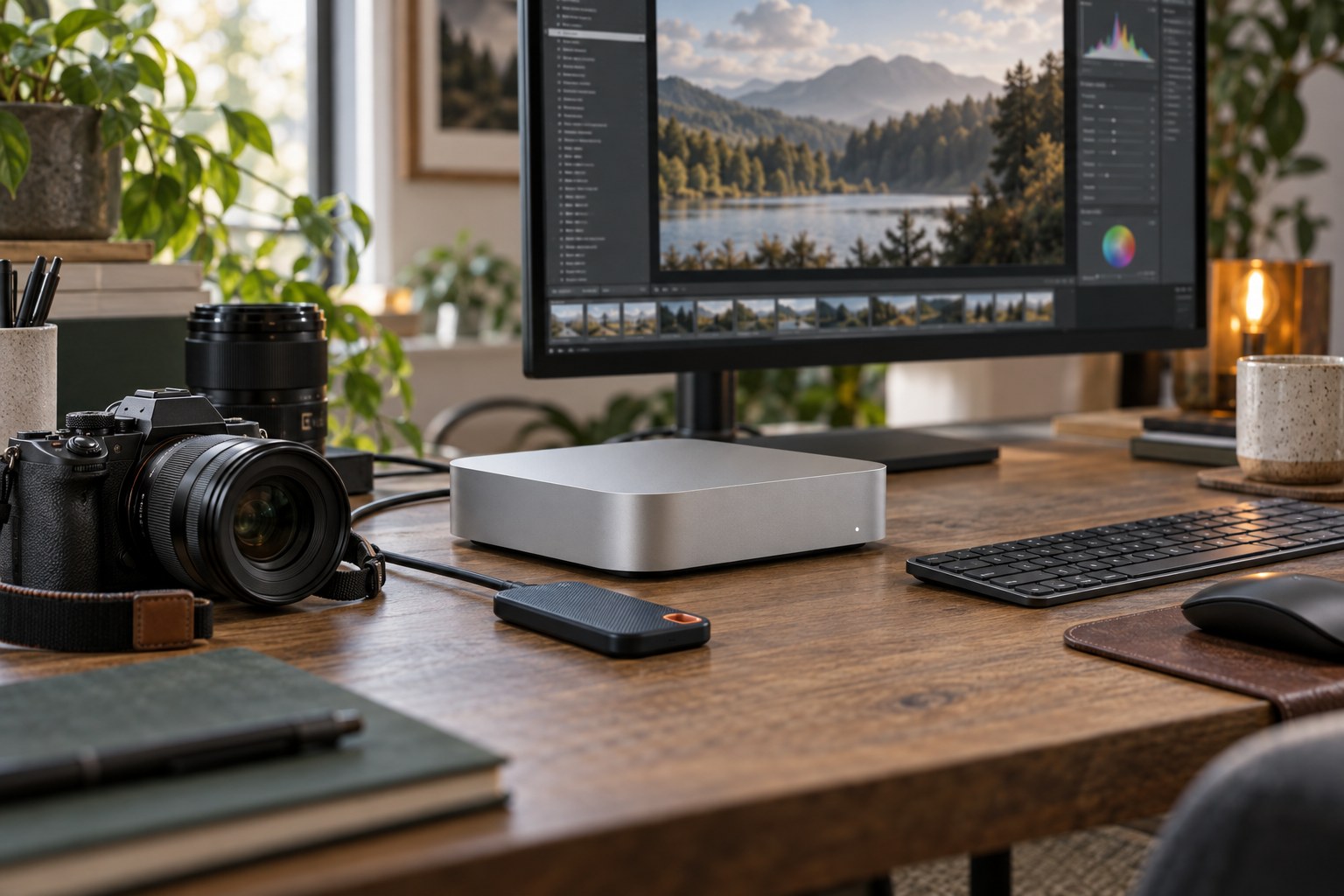
For Lightroom, spend on working memory and a safe file plan first
For a typical Lightroom Classic catalog, start by comparing the standard Mac mini and its memory options; move to the M5 Pro only when you can use its extra memory headroom, ports or sustained capacity. Adobe recommends 16 GB RAM and lists 16 GB unified memory for full GPU acceleration. Before buying storage, decide where the catalog and active photos live and how a second copy will be made. This is a research guide, not a benchmark or review of the new M6 or M5 Pro.
This is a specification-based buying guide checked 7 October 2026. Adobe requirements and Apple configuration details are cited below. I use an M4 Mac mini for photo editing, but I have not benchmarked Lightroom Classic on the M6 or M5 Pro; no comparative export, denoise or AI performance claims are made here. Amazon listings, prices and configurations can change.
As an Amazon Associate I earn from qualifying purchases.
| Workflow | Starting point to compare | What to verify |
|---|---|---|
| Occasional edits, modest catalog | M6 Mac mini with 16 GB unified memory | Catalog size, preview settings, GPU features and available internal storage |
| Large catalog or frequent AI-assisted editing | Compare 24/32 GB M6 configurations and M5 Pro | Whether memory pressure or a specific port/workload is your actual limit; no speed ranking is implied |
| Many active photo projects | Internal storage for system/apps plus a fast external photo drive | Working capacity, connection speed, free space and backup copy |
| Travel or desk changes | Keep originals on a suitable external drive and use Smart Previews where useful | Smart Previews support an offline workflow but do not back up originals |
What Lightroom Classic actually asks for
Adobe lists 8 GB RAM as the minimum and recommends 16 GB or more. For full GPU acceleration and AI features, Adobe specifies 16 GB unified memory on Apple silicon Macs. Apple lists 16 GB unified memory as the M6 Mac mini starting configuration, with higher memory options; the M5 Pro begins at 24 GB. That makes the base M6 a plausible starting point for ordinary editing, while a larger memory configuration is worth comparing for a big catalog or heavier concurrent work. The latter is a planning recommendation, not a claim that a specific configuration exports photos faster.
Lightroom Classic has different system requirements from cloud-first Lightroom. Check Adobe’s current requirements for the exact app you use before placing an order.
Catalog, originals and previews are different jobs
Adobe recommends SSD storage for the Lightroom Classic catalog and previews because these files are accessed frequently. Keep the catalog on a directly attached local drive; Adobe says catalogs cannot be stored on a network volume. Your original photos can live on a separate external drive or network storage, but access may be slower. Leave working room: Adobe recommends at least 20% free space on the drive containing the catalog.
A 2 TB external SSD can be a practical active-photo tier if it matches your library size and connection needs. The Samsung T9 link below is a product listing, not a test result; confirm the selected capacity and seller. A single SSD is not a backup. Keep a second copy on a separate drive or backup service and periodically check that files can be restored.
Samsung T9 on a Mac mini: check the USB mode before paying for speed
Samsung rates the T9 for up to 2,000 MB/s, but its own footnote requires a USB 3.2 Gen 2×2 host, suitable cable and UASP. Apple lists the current Mac mini’s front USB-C ports at up to 10 Gb/s, with Thunderbolt and USB4 on the rear. Apple’s cited specification does not establish a 20 Gb/s Gen 2×2 mode. Do not infer T9’s headline speed from a faster Thunderbolt or USB4 number: these are different connection modes.
That is a specification-based buying caution, not a measured T9 benchmark. If you already own the drive, check its negotiated connection and your real import or copy task before replacing it. If buying new, compare capacity, price and a confirmed host/drive connection first. A dock adds ports; it does not by itself prove the required USB mode or turn a USB drive into a Thunderbolt drive.
Smart Previews help with mobility, not protection
Smart Previews let you edit while the original files remain on an external drive that is disconnected. When the originals are available again, Lightroom Classic applies the edits to them. That can make a laptop or smaller working setup more convenient. Smart Previews are not a backup of the originals, so they do not replace another copy of your photo library.
M6 or M5 Pro: pay for a real constraint
Apple’s published specifications distinguish the M6 Mac mini from M5 Pro by memory options and connectivity, including Thunderbolt 4 on M6 and Thunderbolt 5 on M5 Pro. If your workflow is mostly one catalog, ordinary adjustments and occasional exports, begin with the standard model and compare memory/storage upgrades. If you run several demanding apps together, use high-speed peripherals, or can name a repeated limit, compare the M5 Pro and its ports. Apple’s own performance statements are manufacturer claims, not independent Lightroom benchmarks.
Amazon search links can show multiple generations, bundles and memory/storage variants. Confirm the chip name, memory, SSD size, seller and delivery region on the selected listing.
A sensible buying order
1. Check your Lightroom Classic catalog size, current free disk space and whether GPU/AI features matter to you. 2. Choose a memory tier with room for your actual workload. 3. Set a location for the catalog and previews, then estimate active photo storage. 4. Add a second backup copy. 5. Buy a dock only after listing the devices and ports you need. A dock such as the CalDigit TS4 is an option to compare when its ports solve a specific desk problem; it is not required for Lightroom.
The Amazon links on this page are affiliate links. As an Amazon Associate I earn from qualifying purchases. I may earn a commission at no extra cost to you.
Sources and further reading
This guide uses the following manufacturer references and primary sources.
Common questions
Is 16 GB enough for Lightroom Classic on a Mac mini?
Adobe recommends 16 GB or more. It also lists 16 GB unified memory for full GPU acceleration and AI features on Apple silicon. Larger catalogs, AI workloads and other apps running at once may justify comparing more memory, but check your own workload rather than relying on an unverified speed promise.
Can I store a Lightroom Classic catalog on an external SSD?
Adobe recommends SSD storage for catalogs and previews and says the catalog must be on a directly attached local drive rather than a network volume. Keep a separate backup of the catalog and originals.
Do Smart Previews back up my photos?
No. They let you work while original files are disconnected, but do not replace a second copy of the original photos.
Should I buy the M5 Pro Mac mini for photo editing?
Compare it when its memory options, Thunderbolt 5 ports or capacity address a specific workflow need. This guide has not benchmarked Lightroom on M6 or M5 Pro, so it does not claim a measured speed advantage.
Will a Samsung T9 reach 2,000 MB/s just because my Mac mini has Thunderbolt?
That speed is not established by the Thunderbolt rating. Samsung requires a USB 3.2 Gen 2×2 host and compatible cable for its headline figure. Apple’s cited Mac mini specification lists front USB at 10 Gb/s and rear Thunderbolt/USB4; it does not establish that Gen 2×2 mode. Check the exact connection and avoid treating this guide as a measured T9 speed test.
As an Amazon Associate I earn from qualifying purchases.