
Running my M4 Mac mini from an external SSD
My 256GB Mac mini kept running out of space, so I cloned macOS to a used 1TB Samsung PM9A1 in a UGREEN D700 enclosure. The extra space has made everyday use easier, although I had to sort out Time Machine and macOS updates after the move.
By WannabeShepherd ·
In this article
Freeing up space had become a regular job on my Mac mini. I'd clear a few gigabytes, move something to a hard drive, and eventually find myself back in the same position.
The machine is an M4 mini with 16GB of memory and the original 256GB SSD. I use it for photography, creative apps and local AI tools. The larger archive was already on hard drives, but applications, support files, caches and swap still filled up the small system SSD.
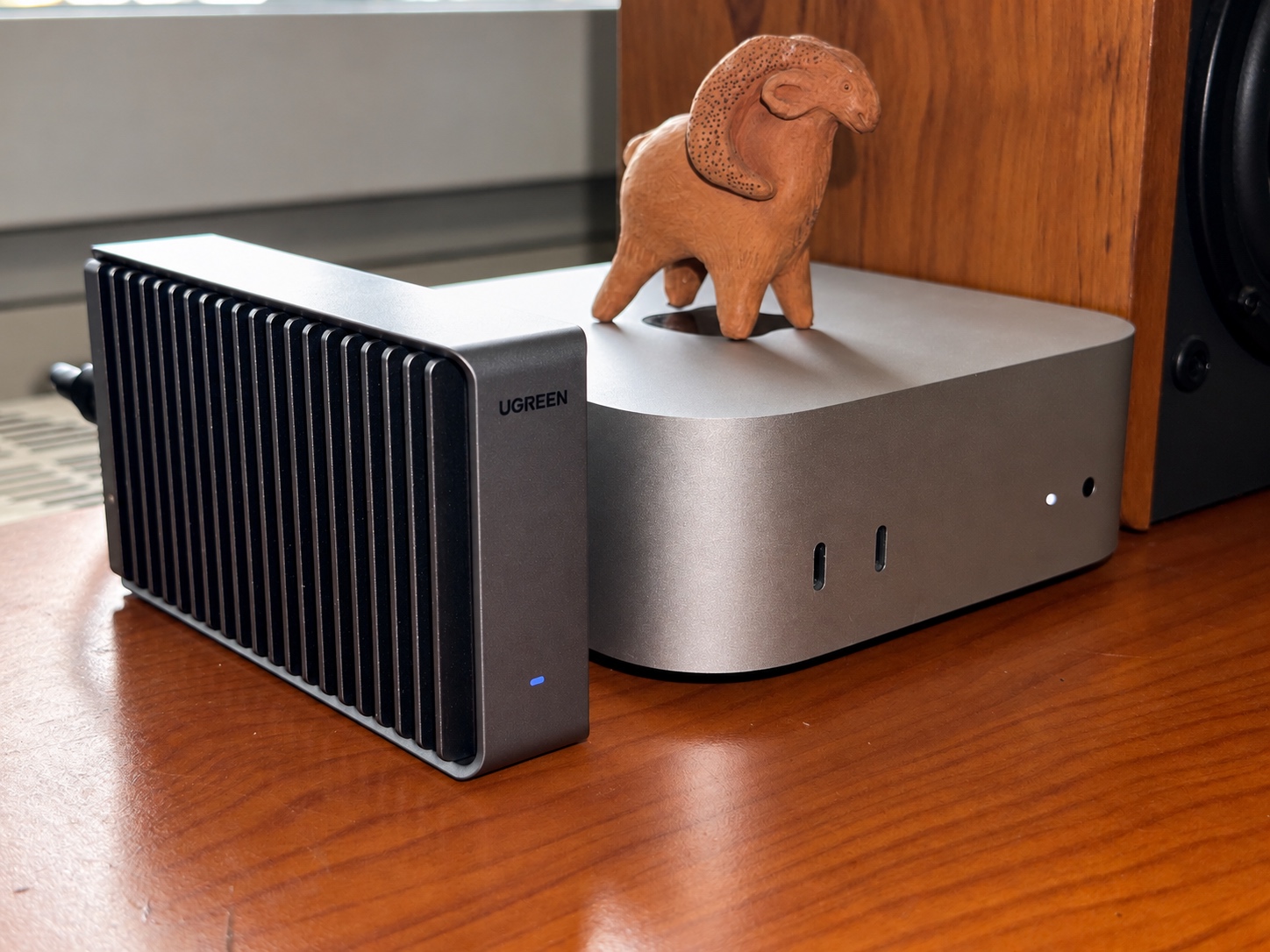
I eventually moved the whole macOS installation to a 1TB NVMe SSD in a UGREEN D700 USB4 enclosure. It's now my normal startup disk. The apps I moved back and the active files for my local AI image-generation work are on that SSD, while the larger archive stays on the hard drives.
Both the enclosure and SSD were bought with my own money.
Usage notes and measurements through 22 October 2026.
How I ended up with apps on a hard drive
This had been building for months. In July, one check showed just 283MiB free. In September, free space dropped to around 395MB during an Adobe installation. Cleaning up helped, but I kept having to do it again.
I had already moved larger applications onto an external hard drive and used symbolic links to keep them accessible from their usual locations. DaVinci Resolve, Android Studio, calibre and rekordbox were among them. Some of the application data had to be dealt with separately, because moving an app doesn't necessarily move everything it stores in your Library folder.
There were some less successful experiments too. Moving the Documents folder inside Draw Things' app container and replacing it with a symlink left the app unable to start properly. Putting the real folder back fixed that particular problem.
By then, managing the small SSD was creating its own work. I wanted the applications and active files back in their normal places, with enough free space that I could install an update without first deciding what to move.
The hardware and what I paid
| Part | My setup | What I paid |
|---|---|---|
| Mac | M4 Mac mini, 16GB RAM, original 256GB SSD | Already owned |
| Enclosure | UGREEN D700 USB4 | €55, new, on sale at Amazon Germany |
| SSD | Samsung PM9A1 1TB NVMe | about €88, used, from Vinted |
The PM9A1 had a reported 95% health figure when I bought it. It's running Dell firmware. The price and the condition of this particular drive were part of the decision; a used SSD listing is still something I'd look at individually.
My total for the two parts was about €143. The D700 cost €55; the SSD was roughly €88 in euro terms. These are my purchase costs, rather than a current shopping quote.
I had considered an internal storage upgrade as well. I ended up taking the external route and keeping the existing internal installation available while I moved across. That also gave me a straightforward way to boot back into the old system when I needed it.
Which port I used
The D700 is connected to a rear Thunderbolt port. Looking at the mini from the front, it's the one towards the left side of the machine. If you're looking directly at the rear connectors, it's the rightmost of the three.
The middle-port advice needs a bit of context. Apple's external startup disk instructions say to avoid the DFU port when installing macOS, although using it after installation is allowed. The M4-specific port testing from Twocanoes identifies the middle rear port as DFU. Apple's linked DFU table has a model-year inconsistency here, so the M4-specific guide is the clearer reference for the physical connector.
That's a reason to pay attention to the port during setup. These measurements don't compare the three ports, so they don't show that the middle one is slower.
Moving the existing installation
I used Carbon Copy Cloner to copy my existing system to the external SSD. I wanted to carry across the installation I already used, with its applications, accounts and settings, rather than rebuild everything by hand.
If you're doing this yourself, the important distinction in CCC is between a normal backup and a copy intended to boot. Bombich's current bootable-copy instructions use Apple Software Restore and erase the selected destination volume. Have a separate backup and check the destination before allowing that operation.
The same instructions cover an Apple silicon detail that's easy to overlook: selecting the copied system in System Settings → General → Startup Disk, clicking Restart and authorising a user on the copy. Use the instructions for your CCC and macOS versions when you reach that stage.
My naming sequence needed a little care because I was keeping both installations. After the move, I booted from the internal system and renamed that disk MacInt. Then I booted from the external system and renamed it Macintosh HD, which was the name I'd been using before. Renaming each disk while running from it was what worked for me.
Once I was working from the external SSD, I brought the applications back from the hard drive. Ten app links were replaced with actual applications or app folders in /Applications. My active StockAI image-generation work, roughly 60GB at the time, also came back onto the system drive. The archive stayed on the hard drives.
That made the setup much easier to follow. /Applications held the applications again, and active files could live under my home folder. Both paths were now on the external system SSD.
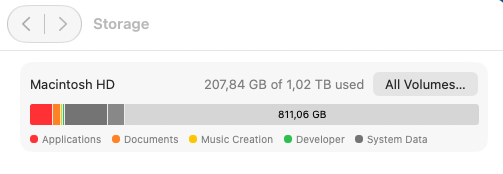
One storage snapshot after the move: 207.84GB used out of 1.02TB. Usage changed as applications and files came back.
The speed tests
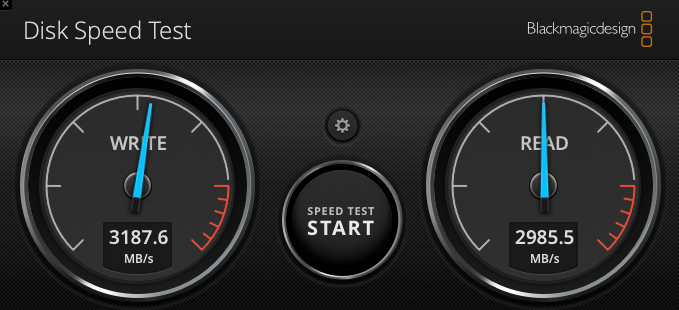
Blackmagic Disk Speed Test showed 2,985.5MB/s read and 3,187.6MB/s write.
I also ran AmorphousDiskMark 4.0.1. That screenshot shows a 1GiB test size, the run count set to one, and Macintosh HD at 28% used.
| AmorphousDiskMark test | Read MB/s | Write MB/s |
|---|---|---|
| SEQ1M QD8 | 3359.77 | 2858.23 |
| SEQ1M QD1 | 2812.29 | 2874.64 |
| RND4K QD64 | 871.95 | 36.72 |
| RND4K QD1 | 74.91 | 33.72 |
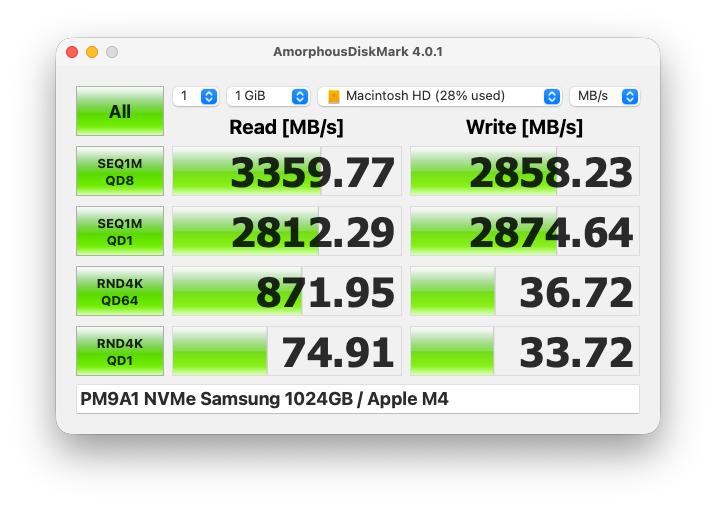
The sequential figures are around 3GB/s. The apps use different test profiles, and my Blackmagic screenshot doesn't show the test size, so I've left the results separate.
The QD64 random write result was much lower: 36.72MB/s. That's what the screenshot shows; I can't explain the gap from this result alone. The 1GiB Amorphous test also doesn't show sustained write speed after the cache fills, or the temperature under that load.
I also don't have a matching set of before-and-after measurements from the original internal SSD. These numbers show what this external setup did, rather than how many percent faster it is than the old one.
What changed in daily use
The mini feels faster to use, and I've run into memory-shortage warnings less often since the move. My suspicion is that having plenty of space available for swap helps. It still has the same 16GB of RAM, though, and I haven't measured that explanation separately.
I can keep the applications and current StockAI work on the system SSD without constantly moving them around.
The machine stays switched on around the clock. During this initial period on the external SSD, I haven't had a freeze, an unresponsive system or an SSD disconnect. That's encouraging for something I'm using as the startup drive every day. This covers my always-on use so far, rather than repeated sleep-and-wake cycles.
Two things I had to fix after the move
After the move, I ran into problems with both Time Machine and Software Update.
Time Machine was trying to back up the old internal installation as well as the running external one. It got stuck on locked files in the old system. Excluding the old internal volumes sorted that out, and a full Time Machine backup completed afterwards.
That's worth checking if you keep the original installation connected. In my case, the large external system was the one I wanted to protect; the old internal copy had become an unwanted extra source. The result I can report here is a completed backup; I don't have a restore result to include.
The update issue was stranger. While trying to get an RC update, Software Update reported that the Mac was up to date. The logs showed errors while preparing the local update workspace, and the external APFS container was missing its Update volume.
Creating that volume with the correct role, then restarting into the external system, let macOS mount it and find the update. The update subsequently installed. I didn't need to disable SIP or reinstall macOS for this repair.
I've put the checks and the failed attempts in a separate troubleshooting write-up. It was a specific problem with my installation, rather than a step I'd tell everyone to add to an external-boot setup.
Would I do it again
For this mini, yes. The 256GB drive was making me organise applications and active work around its capacity. Moving to the external SSD gave me enough room to put those things back where I wanted them, with good transfer speeds and no disconnects so far.
There are still a couple of practical trade-offs. The startup SSD needs to remain connected, so it takes a port and adds an enclosure and cable to the setup. And external boot doesn't make an Apple silicon Mac independent of its internal storage: Apple says a working built-in startup disk is still required. The same page also notes that Background Security Improvements reach an externally booted system as part of a subsequent software update.
I'd make a separate backup, keep the internal installation until the external one is working properly, and check a full backup and Software Update before calling the move finished. Both checks caught something in my case.
I'm happy with the D700 and used PM9A1 combination for what I paid. I'll have more to say about the hardware once it's had longer use, but the extra space is already doing what I needed it to do. I can leave the applications on the SSD and get back to using the Mac.