
New Kindle setup · updated 4 October 2026
Moving to a new Kindle: what transfers, what needs setup
Your Kindle purchases should be waiting in the cloud when you use the same Amazon account. Reading position and notes depend on Sync; personal files and USB transfers need a separate check.
The quick answer
Sign in with the same Amazon account, connect to Wi-Fi, then sync.
Your Kindle Store books live in your Amazon library; they are not normally copied directly reader-to-reader. Amazon says Sync can restore your furthest reading position, notes and highlights across linked devices when Sync is on. Personal documents need to be in your Kindle library or sent again. Keep the old reader available until you confirm the books and notes you care about appear.
Your Amazon library
What should appear when you sign in?
When the new Kindle is registered to the Amazon account that owns your books, its Library can show eligible purchases from that account. The titles may still need to be downloaded to read offline. This is an account-library handoff, not a direct copy from the old Kindle, so creating a second Amazon account can leave the purchases behind on the first one.
Amazon's Sync service backs up reading position, notes and highlights for linked Kindle devices and apps. Sync is on by default according to Amazon's current help page, but each device needs an internet connection. Check the setting if a bookmark or recent highlight is important before you retire or reset the old reader.
- Store books: find them under Library on the new device, then download the ones you want offline.
- Reading position, text notes and highlights: connect both devices to Wi-Fi and sync them with the same account.
- Handwritten notes: support depends on the device and annotation type. Amazon says Scribe handwriting sync has narrower support than text notes and highlights.
- Personal documents: check whether they were sent to your Kindle library; a file stored only on the old reader may need to be sent again.
EPUB, PDF and your own files
Personal documents follow a different path.
Amazon's Send to Kindle service can add supported personal documents to your Kindle library and deliver them to selected devices. Amazon lists EPUB and PDF among supported file types. If you sent a document before, check that it appears in your library and that the new Kindle is selected for delivery; if not, send the original file again through Amazon's current Send to Kindle page.
Documents sent by email are accepted only from addresses on the account's approved Personal Document Email List. That account setting is separate from the address used to sign in. Amazon also says its Send to Kindle service has a 200 MB per-file limit for wireless transfer; check the current service page for supported formats and limits before moving a large archive.
For local files, keep the originals on your computer or backup drive until you have opened them on the new reader. This is especially useful for DRM-free books, PDFs and documents that were copied manually rather than saved in the Amazon cloud.
A low-stress transfer
Set up the new Kindle in five checks.
- Confirm the account first. Use the Amazon account where your Kindle purchases and personal documents are stored.
- Connect the new reader to Wi-Fi. Finish device registration and let the Library populate. A large library can take time to refresh.
- Sync before opening a book. This gives Amazon a chance to bring across the furthest reading position, notes and highlights that Sync has saved.
- Download a few important titles. Check a recent book, a book with annotations and any personal document you rely on. Open them to confirm they work.
- Only then decide what to do with the old Kindle. Keep it charged and registered until your must-have content is accounted for. If you plan to give it away, follow Amazon's current deregistration and reset instructions.
This checklist describes Amazon's account and Sync flow. It does not promise every file, borrowed title, subscription item or handwritten mark can move between every Kindle generation; availability can depend on the content's rights, the account region and the device feature.
A Mac-specific detail
On recent Kindles, USB transfer on Mac uses Amazon’s app.
Amazon's current Mac help page says Kindle models released in 2024 or later, as well as Kindle Scribe, need the official Send to Kindle Mac app to browse files over USB. Amazon describes its USB File Manager for Intel and M1–M3 Macs running macOS 12 or later. Since that published compatibility list does not mention newer Mac chips, check Amazon's current app requirements before relying on a cable workflow.
For many supported personal documents, wireless Send to Kindle is simpler: choose the file, send it to the account, then select the new Kindle for delivery. If you use USB, follow Amazon's app instructions and keep your source files intact. The steps for a Mac differ from Amazon's Windows guidance, so older advice to drag files in Finder may not apply to a 2026 Kindle.
A missing book is usually fixable
Check these before repeating setup.
- Confirm the Kindle is online and Airplane Mode is off.
- Check you registered the same Amazon account used for the purchase.
- In Library, switch to All and clear filters before searching.
- Run Sync or Sync and Check for Items, then give the library time to refresh.
- In Amazon's Manage Your Content and Devices, choose the book and use Deliver or Remove from Device if manual delivery is needed.
- For a recent order, confirm the digital order is complete; an unpaid or pending order may not be in the library yet.
If the title still does not appear, Amazon's troubleshooting page covers account, connectivity, filters and delivery checks. Content availability may also differ by country or publisher rights.
Still choosing your first or next reader?
Pick the Kindle around the pages you read.
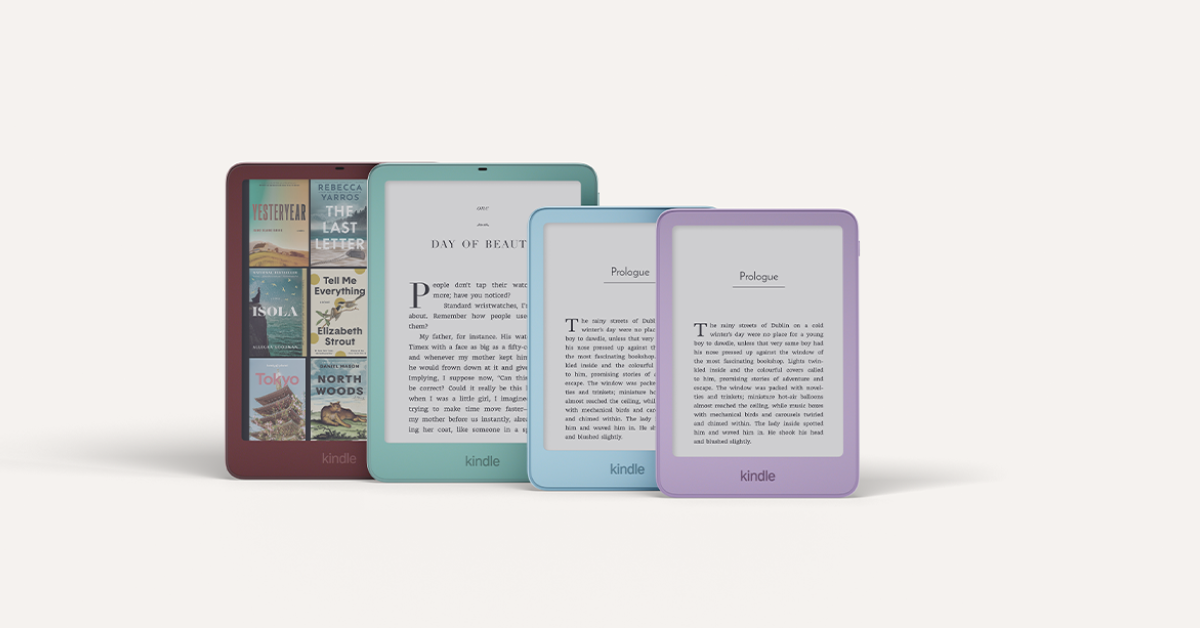
The setup flow is similar across this new family; screen size, warm light, waterproofing and color are the real buying differences. See the full comparison before you choose a configuration.
Paid Amazon links. As an Amazon Associate I earn from qualifying purchases. Amazon.com listing, seller, configuration, price and delivery options can change; confirm them before ordering.
Common questions
New Kindle setup questions
Will my Kindle books automatically download?
The titles should appear in the Library for the same account, but you may need to tap a title to download it to the new device for offline reading.
Do my notes and reading progress move?
Amazon says Sync backs up reading position, notes and highlights for linked Kindle devices and apps. Connect to Wi-Fi and sync; handwritten annotations have more limited support across devices.
Can I transfer EPUB files?
Amazon supports EPUB as a personal-document format through Send to Kindle. Use Amazon's current delivery options and retain your original file.
Do I need the same Amazon account?
Yes, for purchases in your existing Kindle library. A different account has a separate library and login. Check the account before registering the new reader.